How to use
Rotate a screen
By pressing Alt+Left or Alt+Right, the screen is rotated by 90 degrees in left or right direction.
When entire screen aspect ratio, seen from rotated screen viewpoint, is smaller than the original,
THRotator tries to magnify main screen region to as large size as possible while you are playing or watching replay data.
Screen capture on Th06
THRotator allows to capture a screen into a .bmp file by pressing Home key on Th06,
which is unsupported on the original Th06.
The destination is snapshot folder in the installed directory,
which is the same as that since Th07 until Th12.
Force HUD rearrangements
HUD rearrangements for vertical screen are forced with Alt+Up and Alt+Down keys.
This option is useful when you want to manually switch to HUD arrangements for vertically-long screen.
THRotator detects whether you are playing or not by the criterion described in 1 Game state. If you would like to use THRotator on a newer Touhou Project game or a game other than Touhou Project on which this detection methodology doesn’t work, use this feature or manipulate on the cutomization window, as described in 7 Force HUD rearrangements.
Note
This config is not saved due to its large effect.
Customization window
Right click on the title bar, and click Show THRotator window or Open THRotator to show the customization window.
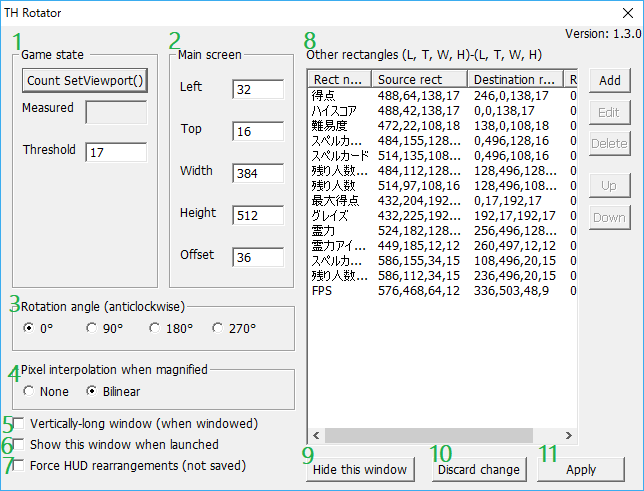
The customization window looks like as follows:
Note
Due to some issues on Touhou 7, the game is suspended while this window is shown.
1 Game state
THRotator detects by counting setting viewport whether you are playing (we call it playing state) or not. In Touhou Project, viewport is updated more frequently while playing state than otherwise. THRotator exploits this fact to automatically switch to an HUD arrangement for vertically-long screen.
By clicking Count SetViewport() button, you can measure the number of times of setting viewport.
If number of times of setting viewport is more than the threshold, HUD elements are arranged for vertically-long screen.
If THRotator fails to read configuration file, the threshold is set to 999 by default to prevent unintentional switching.
If you would like to use THRotator on a newer Touhou Project game or a game other than Touhou Project on which this detection methodology doesn’t work, follow Force HUD rearrangements or manipulate on the cutomization window, as described in 7 Force HUD rearrangements.
2 Main screen
Specifying main screen position and size (blue rectangle in the figure below). This rectangle is moved to the center of window or of entire screen, and magnified to fit to the client size of window or of entire screen, keeping its aspect ratio fixed.
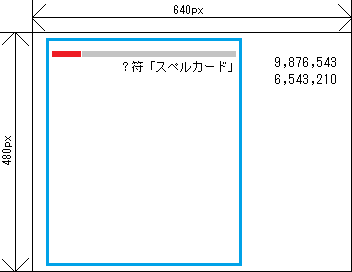
In most of Touhou Project games, its position and size are (left, top, width, height)=(32, 16, 384, 448). Exceptionally, the position and size are (left, top, width, height)=(128, 16, 384, 448) in Shoot the Bullet (Th095), Fairy Wars (Th128), and other spin-off games.
This rectangle specified here doesn’t have to correctly match the actual main screen rectangle. In fact, some margin is introduced in .ini files for Fairy Wars (Th128) and Uwabami Breakers (alcostg) to accommodate all the HUD elements.
Finally, Offset can be used to adjust vertical position.
Since Th14, you can additionally choose 960x720 and 1280x720 resolutions. In these resolutions, specify position, width, and height in the coordinate scaled to 640x480.
3 Rotation angle
Although you can rotate a screen by Alt+Left and Alt+Right,
this window can also be used to specify rotation angle.
The direction of rotation is counter-clockwise.
The default choice is 0 degrees.
4 Pixel interpolation when magnified
Specifying how pixel colors are interpolated when magnified.
The default choice is bilinear.
5 Vertically-long window
If checked, the window size becomes vertically-long by swapping its width and height.
This checkbox is unchecked by default.
6 Show this window when launched
If checked, this window appears immediately after the game is launched.
This checkbox is unchecked by default.
Note
This checkbox is disabled on Touhou 7.
7 Force HUD rearrangements
If checked, HUD rearrangements are forced.
This option can also be switched with Alt+Up and Alt+Down when the main window is focused on.
This checkbox is unchecked by default.
THRotator detects whether you are playing or not by the criterion described in 1 Game state. If you would like to use THRotator on a newer Touhou Project game or a game other than Touhou Project on which this detection methodology doesn’t work, manipulate on this checkbox or follow Force HUD rearrangements.
Note
This config is not saved due to its large effect.
8 Other rectangles
Specifying source and destination rectangles other than main screen.
To create a new rectangle transfer, click Add button,
then rectangle editing window appears.
To edit an existing rectangle transfer, select the name of rectangle transfer and click Edit,
then rectangle editing window appears.
Rectangles are transferred from top to bottom in the list view. So the bottommost transfer is rendered in front of all the other transfers.
Coordinate system is as follows, where Wp and Hp are width and height of main screen size that is fit to the aspect ratio inverted from the original.
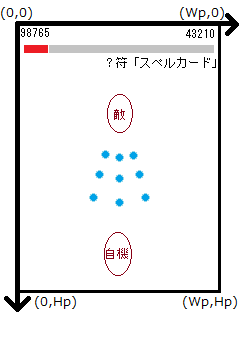
Since 1.01, rectangle transfer destination can reach the remaining black stripe regions.
Since Th14, you can additionally choose 960x720 and 1280x720 resolutions. In these resolutions, specify position, width, and height in the coordinate scaled to 640x480.
9 Hide this window
Closing this window.
10 Discard change
Resetting to the parameters when Apply was pressed last time.
11 Apply
Applying input parameters to actual rendering. When successful, configuration file is saved.
Best practices
Although this page describes the detailed behavior, it is much easier to understand the behavior by actually editing parameters.
Procedure to support a new product looks like as follows:
- Measure times of setting viewport in playing state and non-playing state respectively,
determine a value larger than that in non-playing state and smaller than or equal to that in playing state,
and fill the threshold by that value.
- Please measure this value while challenging a spell card since it generally becomes fewer.
- Fill main screen position and size.
- Add rectangle transfers for the scores, lives, and other HUD elements.